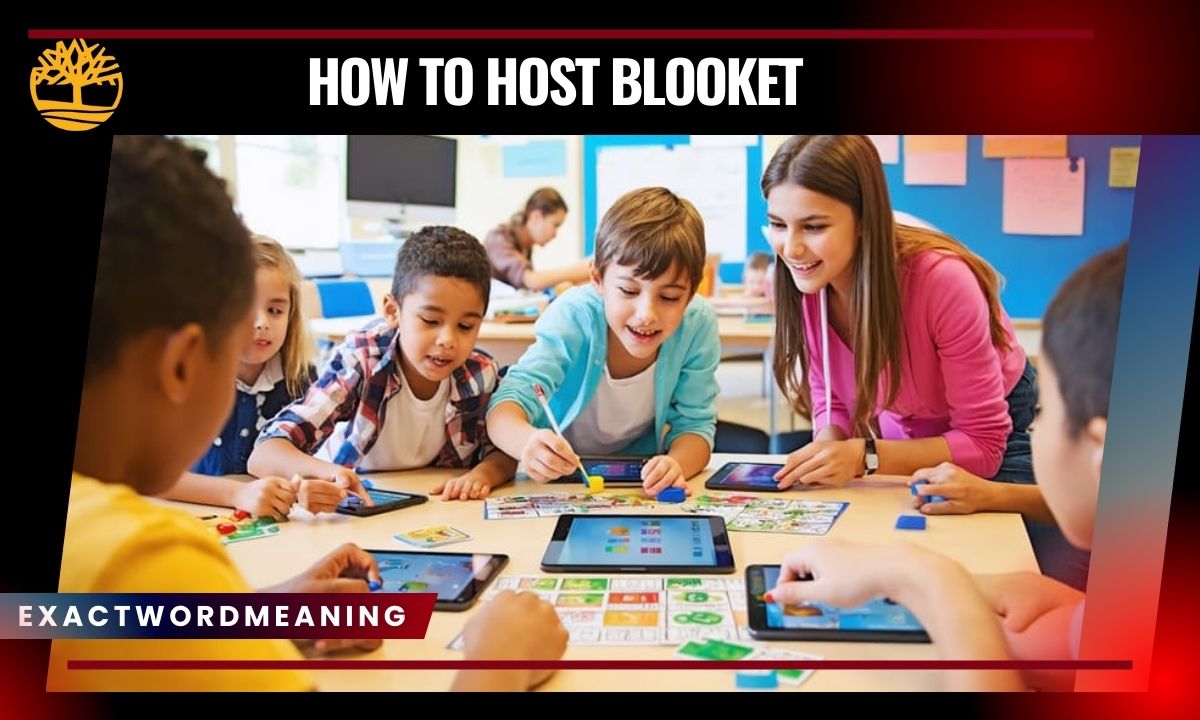
Hosting a Blooket game is a fun way to make learning interactive and exciting. Whether you’re a teacher, student, or group leader, you can create sessions that keep everyone engaged. With the right setup and game mode, hosting is easier than it seems.
This guide will show you step-by-step how to pick question sets, choose game modes, and manage your players. You’ll also learn tips to boost participation and track performance. By the end, you’ll be ready to run smooth, engaging Blooket games every time.
What is Blooket and Why Use It for Learning?
Blooket is a game-based learning platform that transforms quizzes into interactive experiences. It helps students stay engaged and motivated while reinforcing knowledge. Teachers and group leaders can create custom games suited to their audience. Its fun interface and multiple game modes make learning enjoyable. Overall, Blooket combines education with play to improve retention.
Understanding the Blooket Platform
Platform: Blooket is designed for both teachers and students. It allows creating, discovering, and hosting question sets. The dashboard is simple to navigate and shows all tools in one place. Players can join using a Game ID or QR code, making it easy for remote or in-person sessions. The platform updates regularly to include new features and game modes.
Interface: The user interface is colorful and interactive. Buttons and menus are clearly labeled for quick access. Game previews let hosts see questions before starting. Visual feedback during gameplay keeps students attentive. Overall, the interface reduces confusion and improves participation.
Integration: Blooket integrates with other learning tools like Google Classroom. This allows teachers to assign homework or track student progress seamlessly. Reports are easy to access and export for performance analysis. Integration supports various educational goals and class sizes. It also encourages data-driven teaching decisions.
Benefits of Hosting Blooket Games for Teachers and Students
Engagement: Hosting Blooket games turns passive learning into active participation. Students enjoy earning points and competing in fun modes. It promotes friendly competition and collaboration simultaneously. The interactive design keeps attention high throughout the session.
Assessment: Teachers can use Blooket to assess knowledge in real-time. Instant feedback on correct and incorrect answers allows adjustments on the spot. Reports provide insights into student strengths and weaknesses. This helps in targeted instruction for better outcomes.
Flexibility: Blooket works in classrooms, virtual meetings, or group events. Hosts can choose from various game modes based on learning objectives. Games can be short or extended depending on the topic. This flexibility ensures that learning fits any schedule.
Getting Started: Essentials You Need to Host a Blooket Game
To host a Blooket game, you need four essentials. A device, a stable internet connection, a Blooket account, and a question set. These are enough to run a session smoothly. Preparing these before hosting avoids interruptions during gameplay.
Device Requirements and Internet Connection
Device: You can use a computer, tablet, or smartphone to host. Larger screens improve visibility for groups. Devices must support Blooket’s interface for smooth gameplay. Using multiple devices can help in large classrooms.
Internet: A reliable internet connection is crucial. Blooket runs online, so lag can affect player performance. Hosts should test connectivity before starting. Mobile hotspots can be backup options. Consistent speed ensures uninterrupted sessions.
Setup: Ensure devices are charged or plugged in. Have headphones if required for audio features. Close unnecessary tabs to improve performance. Test the connection with a small group first. Preparation prevents technical issues during live games.
Creating or Logging Into Your Blooket Account
Sign Up: Visit Blooket.com and create a free account if you’re new. Use a valid email and verify it to activate the account. Free accounts support most game modes with up to 60 players.
Login: Returning users can simply log in using credentials. Teacher accounts may have additional tools for student management. Access to your My Sets and Discover library is available once logged in. Keep login information secure for quick access.
Account Types: Teacher accounts allow detailed analytics and integration with learning management systems. Student accounts focus on gameplay and earning tokens. Choose the right account based on your hosting goals. Premium subscriptions unlock higher player limits and advanced reports.
Choosing the Right Question Set for Your Audience
Discovery: Use the Discover tab to browse millions of public question sets. Search by subject, grade level, or popularity. You can pick sets that match your lesson objectives.
Customization: Hosts can create their own sets for tailored content. Add images, videos, or diagrams to enhance engagement. Questions should be clear, concise, and age-appropriate.
Mixing: Combine pre-made and custom questions for variety. Adjust difficulty to challenge students without causing frustration. Ensure a balanced set to maintain attention throughout the game.
Step-by-Step Guide to Hosting a Blooket Game
Hosting a game involves four main steps. Select your question set, pick a game mode, configure settings, and start the session. Following a workflow ensures smooth gameplay. Proper preparation enhances engagement and learning outcomes.
Navigating Your Dashboard and Accessing Question Sets
Dashboard: The dashboard organizes your question sets and game history. The My Sets tab stores your created sets for easy access. The Discover tab shows public sets.
Preview: Click on a set to preview questions. Use the Show Answers feature to verify content. Make edits if needed to align with your audience’s needs.
Management: Track past game sessions from the dashboard. You can duplicate successful sessions for future use. This saves preparation time and maintains consistency.
Selecting Game Modes That Fit Your Goals
Modes: Blooket offers Tower Defense, Gold Quest, Battle Royale, Crazy Kingdom, and more. Each mode supports different learning objectives. Quick modes are ideal for review; longer modes suit complex topics.
Audience: Younger students prefer visually engaging games like Tower Defense. Older learners enjoy strategic modes like Crazy Kingdom. Match game mode to age and skill level for maximum participation.
Strategy: Some modes encourage collaboration, others competition. Decide whether your goal is teamwork, skill-building, or speed. Proper mode selection shapes engagement and retention.
Configuring Game Settings for Maximum Engagement
Timer: Set the duration to keep the game within class limits. Time-based endings suit short reviews; achievement-based endings allow extended play.
Player Management: Enable late joining or random names based on classroom needs. Decide if student accounts are required to track progress.
Extras: Shuffle questions, adjust points, or enable bonus rounds. Preview the game to ensure all settings function properly. Small adjustments enhance fairness and excitement.
Sharing Game Codes and QR Codes with Players
Game ID: Players join using a unique Game ID. Share this verbally, via email, or chat for easy access.
QR Codes: QR codes reduce errors and speed up joining. Display codes on screens or slides for convenience.
Links: Use join links for remote classes. Players can click to enter without typing IDs. Multiple sharing methods ensure all students can participate.
Starting, Monitoring, and Ending Your Game
Start: Once all players join, click Start to launch the game. Full-screen mode improves visibility. Mute music if needed for focus.
Monitor: Watch player progress in real-time. Identify struggling players and offer support. Adjust pace if necessary to maintain engagement.
End: Click the end icon or wait for the timer/goal completion. Show the leaderboard to celebrate performance. Post-game reports provide detailed insights for future sessions.
Understanding Game Rules, Timers, and Goals
Understanding game rules is essential for a smooth Blooket session. Timers help manage the pace of the game and keep players focused. Goals provide clear objectives, motivating participants to stay engaged. Different game modes have unique rules, so knowing them improves game flow. Preparing these in advance ensures everyone enjoys the session.
Game Rules Simplified
Rules: Every game mode has specific rules. Tower Defense requires quick answers to build defenses. Gold Quest focuses on exploration and treasure collection. Knowing the rules helps you explain them clearly to players. Proper explanation prevents confusion.
Adjustments: Hosts can modify rules for your audience. Enable or disable late joining depending on the group. Adjust timers for shorter or longer sessions. Customizing rules ensures engagement and fairness.
Clarity: Explain objectives before starting. Players perform better when they know what is expected. Clarify scoring systems, penalties, and bonus opportunities. This improves overall satisfaction and learning.
Timers and Time Management
Timing: Use timers to maintain a structured session. Short games keep energy high. Longer games support strategic learning.
Flexibility: Achievement-based endings can replace strict timers. Players meet goals naturally without rushing. Combining timers with achievements balances pace and completion.
Monitoring: Watch the progress and adjust if players lag behind. Avoid ending games abruptly if engagement is high. Timers should support learning, not hinder it.
Setting Clear Goals
Objective: Goals provide purpose in the game. Example: collect 100,000 gold in Gold Quest. Players know when the game ends and what to aim for.
Motivation: Goals drive participation and friendly competition. They encourage players to focus on accuracy and speed.
Customization: Adjust goals to fit age, skill, or topic. Tailored goals keep games challenging yet achievable.
Encouraging Participation and Friendly Competition
Active participation keeps Blooket games lively. Friendly competition motivates students to answer questions accurately. Setting the right environment reduces anxiety. Celebrating effort and improvement promotes engagement. Hosts can balance competitiveness with collaboration for maximum results.
Engagement Strategies
Prompt: Encourage students to join early and participate actively. Give a brief overview of the game rules. Share incentives or rewards for participation. Positive prompts make sessions welcoming.
Teams: Divide players into teams for collaborative modes. Teams help shy students participate. Rotate members for variety and inclusivity.
Recognition: Celebrate participation, not just winning. Highlight improvement or creative strategies. Recognition fosters motivation and a positive experience.
Balancing Competition and Learning
Fair Play: Set rules that balance challenge and fun. Avoid overly punishing modes that discourage slower learners.
Collaboration: Some game modes allow team cooperation. Pairing stronger students with others helps everyone succeed.
Feedback: Offer real-time encouragement during gameplay. Use game data to guide praise and support. This reinforces learning and motivation.
Incentives and Rewards
Tokens: Students earn points or tokens during gameplay. This gamifies learning and reinforces positive behavior.
Achievements: Reward milestones or creative solutions. Achievements encourage persistence and strategic thinking.
Customization: Adjust rewards to suit your classroom culture. Rewards should motivate without creating excessive competition.
Using Multimedia and Interactive Elements to Boost Engagement
Adding images, videos, or sound makes Blooket sessions more dynamic. Multimedia appeals to different learning styles. Visual and audio cues increase retention. Interactive elements maintain attention and reduce fatigue. Creative content makes sessions memorable and effective.
Images and Graphics
Visuals: Use images to clarify questions or illustrate concepts. This aids visual learners.
Icons: Incorporate fun icons or GIFs to lighten the mood. Graphics increase attention and excitement.
Diagrams: Complex topics can be broken down with diagrams. Students grasp difficult ideas faster with visuals.
Videos and Animations
Clips: Short videos provide context for questions. Video-based questions improve engagement.
Instructions: Animated instructions can guide players through gameplay. They reduce confusion and save time.
Illustrations: Videos can illustrate real-world applications of questions. This connects learning to practical examples.
Sound and Music
Audio: Background music can enhance energy. Keep volume moderate to avoid distraction.
Effects: Sound effects reward correct answers or highlight achievements. This reinforces positive behavior.
Narration: Voiceovers can explain complex questions. Audio adds another layer of accessibility.
Post-Game Analysis: Tracking Performance and Insights
Post-game analysis reveals learning outcomes and engagement patterns. Reviewing reports helps teachers tailor future sessions. It identifies strengths, weaknesses, and trends. Data-driven insights improve instructional decisions. Hosts can refine content and game design for better results.
Viewing Leaderboards and Reports
Leaderboard: Displays top performers in real-time. Encourages motivation and accountability.
Reports: Show detailed question-by-question performance. Identify areas needing reinforcement.
Patterns: Compare student results to assess class-wide understanding. Leaderboards plus reports give a complete view.
Using Analytics to Improve Learning Outcomes
Metrics: Track response times, correct/incorrect ratios, and engagement levels. These reveal comprehension gaps.
Adjustment: Use analytics to adjust difficulty for future sessions. Tailor questions to challenge students appropriately.
Trends: Long-term tracking shows improvement over time. Identify students needing extra support or enrichment.
Actionable Insights
Identify: Recognize patterns where multiple students struggle. This guides remediation.
Feedback: Share insights with students for self-improvement. Encourage reflection and strategy adjustment.
Optimization: Refine question sets, game modes, and settings based on analytics. Data informs future planning.
Creative Ways to Use Blooket Beyond the Classroom
Blooket works in many environments outside schools. Corporates, workshops, and private sessions benefit from game-based learning. The platform enhances engagement, knowledge retention, and collaboration. Adapting content to different audiences maximizes impact.
Corporate Training and Team Development
Training: Use Blooket for onboarding or refresher courses. Interactive quizzes increase participation.
Teams: Run collaborative or competitive sessions to build teamwork. Encourage cross-department interaction.
Retention: Gamified quizzes make training memorable and fun. Employees retain information longer.
Tutoring, Workshops, and Private Learning Sessions
Tutoring: Small groups or one-on-one sessions benefit from interactive gameplay. Personalized question sets target weak areas.
Workshops: Keep participants engaged with competitive or cooperative modes. Add multimedia for clarity.
Private Sessions: Tutors can monitor performance closely and adjust pacing. Immediate feedback enhances learning.
Virtual Socials and Interactive Group Activities
Socials: Use Blooket to break the ice or energize virtual events. Fun themes keep participants interested.
Team Building: Play collaborative modes to foster connection and communication. Encourage problem-solving.
Events: Use competitions for celebrations or gatherings. Engagement improves morale and participation.
Frequently Asked Questions
How Do I Host a Blooket Game as a Teacher or Student?
Log into your Blooket account, select a question set, choose a game mode, and share the Game ID.
Can I Host Blooket Games on Mobile Devices?
Yes, Blooket works on smartphones, tablets, and computers with a stable internet connection.
How Do I Customize Questions for My Blooket Session?
Use the Create button to add or edit questions. Include multimedia or import from other sources.
Do Players Need Accounts to Join a Blooket Game?
No, players can join via Game ID or QR code without accounts, but accounts track progress.
What Are the Best Game Modes for Different Age Groups?
Younger students enjoy visual and fast-paced modes like Tower Defense. Older students prefer strategy modes like Crazy Kingdom.
How Can I Monitor Player Progress During a Live Game?
Use the host dashboard to track answers, scores, and engagement in real-time.
Conclusion
Blooket hosting is a powerful tool for interactive learning. Understanding rules, timers, and goals ensures smooth gameplay. Using multimedia and competition boosts engagement and participation. Post-game analytics provide insights to improve learning outcomes. Beyond classrooms, Blooket can transform corporate training, workshops, and social activities.

Muhammad Shoaib is a seasoned content creator with 10 years of experience specializing in Meaning and Caption blogs. He is the driving force behind ExactWordMeaning.com, where he shares insightful, clear, and engaging explanations of words, phrases, and captions.